This post contains affiliate links. We may earn a small commission when you buy through our links — at no extra cost to you.
A coding robot sounds like the perfect compromise: screen-free learning that feels like play. But spend ten minutes on a shopping site and the doubts creep in—will it actually teach anything, or will it be another plastic gadget that loses its charm by Tuesday? The best ones turn abstract concepts like loops and conditionals into something a kid can chase across the floor. They also have to survive being dropped, dragged, and occasionally used as a pretend pet.
Over the past eight months, my team and I have put a dozen coding robots through after-school sessions, weekend playdates, and the occasional tantrum. We watched kids ages six to ten unbox them, pair them with tablets, and decide within minutes whether they were worth their attention. The ones that stuck around weren’t the flashiest—they were the ones that were easy to start, sturdy enough for real life, and fun enough that the word ‘coding’ never came up. Below, you’ll find the robots that earned a permanent spot on the shelf.



Best for First Coding Robot
Botley Coding Robot Set
Key Features
- Pieces: 77
- Batteries: 5 AAA, not included
- Coding method: Screen-free remote programmer
- Recommended age: 5 years and up
- Price: Midrange
Set out the tiles, deal a few coding cards, and a five-year-old can program a robot without touching a tablet. That is the case for Botley, and it holds up better than we expected: no pairing, no app account, no second screen competing for attention, just a remote programmer taking a sequence and a robot that runs it. The physical order of the cards does the teaching — a child lays the route out on the floor, then keys the same order in and watches it either work or not.
The box does a lot of the work. Forty coding cards, six double-sided tiles, and 27 obstacle pieces turn a living room into a course, and the detachable arms let Botley push things around. Object detection is where the toy quietly becomes a lesson: the robot stops, the child works out why, and the program gets rebuilt. Loops come next, and black-line following adds another mode without another purchase.
Turning is the weak spot. Two turns should total 180 degrees, and Botley can come up short, which on a tight maze is enough to put the whole route off course. Leave some room in the course and the error stops mattering — build wide and the robot looks accurate.
What it won’t do is grow with your child forever. By eight or nine, a child who has loops down wants block code with variables, and that’s a different purchase. As a first robot, though, nothing else here asks so little of the adult and gives the child so much to run on their own.
Pros
- Programs without a tablet, phone, or app
- 77 pieces build real obstacle courses
- Object detection and loops extend the play
Cons
- Five AAA batteries and a screwdriver are not included
For a five- to seven-year-old, we think this is the coding robot to buy first: it teaches real sequencing with cards and a remote, no tablet required.
Best for Ages 6 to 11
Dash Robot
Key Features
- Apps: Five
- Power: Rechargeable, USB cord included
- Coding method: Block-based apps including Blockly
- Recommended age: 6 years and up
- Price: Premium
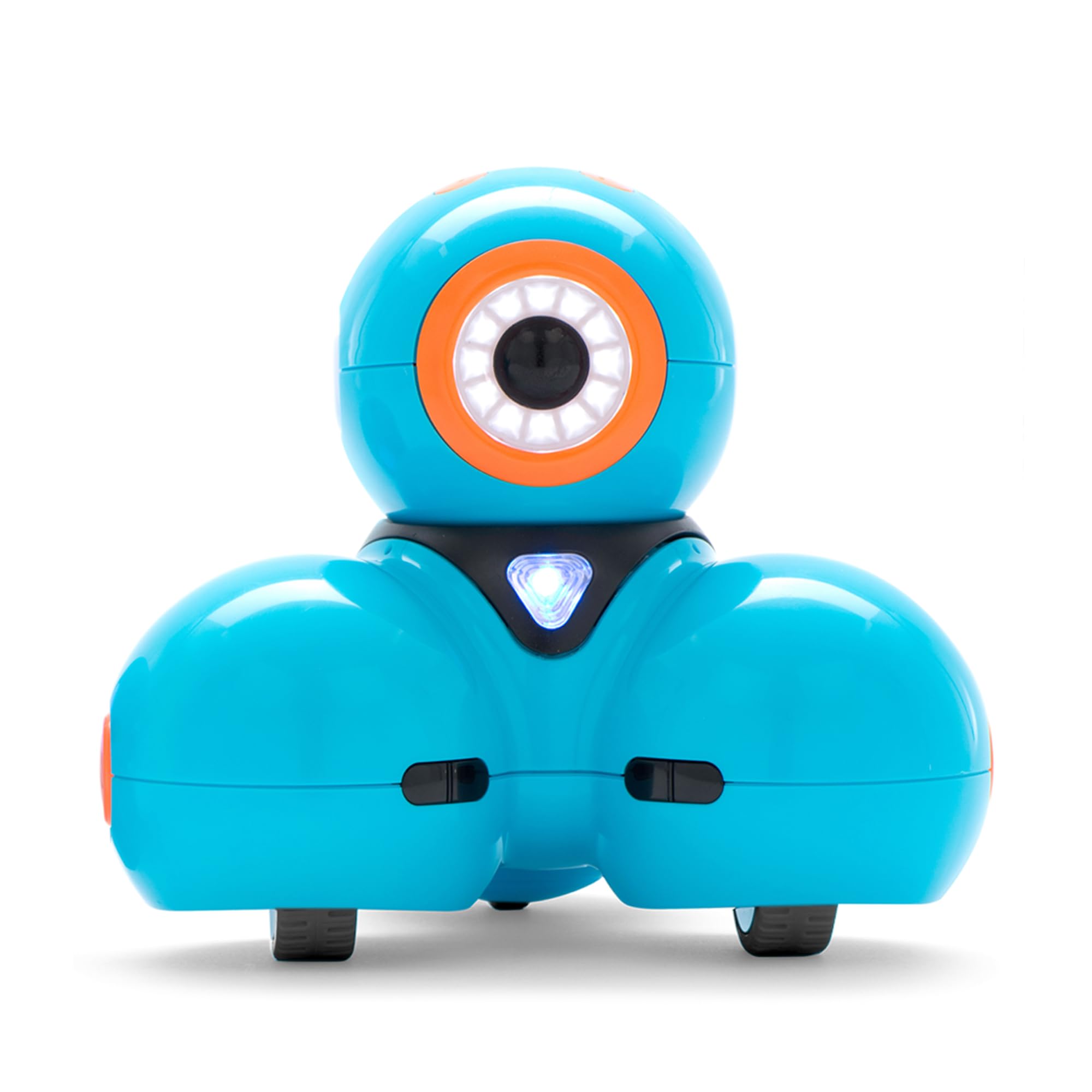
Dash is the most expensive robot on this page, and the first hour doesn’t explain why. It drives, it dances, it responds to a clap — so does a remote-control car. The money goes on the software, and the software only shows its value in week two, when the same robot is still teaching something new.
Five apps cover the runway, and Blockly is the one that matters: it starts with sequences and grows into loops, algorithms, and variables, which is the same ladder Scratch uses. We think it’s the best pick here for a child who already likes screens, because the coding has somewhere to go rather than stopping at a demo. Two building-brick connectors let Lego get involved, the robot reacts to voice commands, and there’s no camera to complicate things.
The cost of all that is a tablet in the room and a price well above everything else here. It’s also the pick that depends most on the app working, so pair it and run a full program on the first day rather than the first weekend away. Buy it if you want one robot to last several years; skip it if the whole point is keeping the child off a screen.
Pros
- Five apps from simple paths to Blockly variables
- Voice commands, obstacle navigation, and dancing
- Two brick connectors bring Lego into it
Cons
- Everything runs through a tablet
- The highest price in this set
Dash is the robot we choose for six- to eleven-year-olds who want block coding that grows, provided the price doesn’t put you off.
Best for Ages 4 to 8
Kids First Coding & Robotics
Key Features
- Manual: 64 pages
- Storylines: Six
- Coding method: Screen-free code cards
- Recommended age: 4 to 8 years
- Price: Premium
There’s an optical scanner under the robot’s nose and a deck of code cards in front of it: slide a card through and the robot does that thing. It’s the closest thing here to writing a program with your hands, and for a four- or five-year-old who can’t yet read fluently, the sequence is the whole lesson. Which is why it’s the gentlest start here for the youngest children in this guide.
The 64-page manual is what separates it from a toy. Six storylines each come with models to build and cards to sequence, so the robot is a mouse in a maze one week and a soccer player the next, and the story gives the commands a reason to exist. It’s genuinely unplugged — no app, no device, no pairing, nothing to charge in the car. Expect to sit alongside a five-year-old, though: the building steps and the longer stories need an adult reading them aloud.
That’s also its limit. At a premium price, this is a purchase for a family who wants a structured Saturday project rather than something a child disappears with for an afternoon. Once the six stories are done there’s no block coding to graduate into, so the next robot is a separate purchase. For the earliest years, though, it’s the most thoughtful on-ramp here.
Pros
- No screen, app, or smart device required
- Robot reads paper code cards, so pre-readers can program
- 64-page manual with six storylines and models
Cons
- Building and reading need an adult nearby
- Premium price for a K-2 kit
For a four- to seven-year-old who needs no screen at all, we haven’t seen a gentler start: paper code cards, and a story manual to work through together.
Best for Builders and Makers
Apitor Robot J 6-in-1
Key Features
- Models: Six
- Pieces: 480 blocks
- Coding method: Icon-based block app
- Recommended age: 7 to 12 years
- Price: Midrange
Six models come out of this one box: 480 blocks, a control module with two motors inside it, two multicolor LEDs, printed building instructions, and a sorting tray. The builds move — left, right, forward, back, 360-degree stunts — with LED eyes and jointed hands doing the personality work. Ages 7 to 12 is the stated range, and that feels about right for the patience the instructions ask for.
The build is the activity, not an obstacle in front of it. The tray keeps the hunt for a particular brick manageable, and an absorbed nine-year-old can work through a model in an afternoon, while a six-year-old will be handing you pieces. The coding lives in the app: an icon-based interface that covers loops and variables through set activities, plus four control modes — dual-motor, single-motor, gyro, and path — so a child can steer by tilting a phone before writing a sequence.
One control module means one model runs at a time, which is worth knowing before you plan a shelf of them. What we like is the balance of building to coding: you get a real model to program rather than a chassis with an app attached. Six builds at a midrange price make this the kit we point builders to first, as long as the child is closer to eight than six and enjoys the assembly as much as the result.
Pros
- Six motorized models from 480 blocks
- Icon-based app covers loops and variables
- Gyro, path, and single- or dual-motor control
Cons
- One control module means one model at a time
- Icon coding stops short of text code
Six motorized models, 480 blocks, and an icon-based coding app make this our pick for builders.
Best for On-The-Go Coding
Sphero Mini
Key Features
- Size: 1.57 in diameter
- Power: Rechargeable, micro USB
- Coding method: Draw, blocks, and text code
- Recommended age: 8 years and up
- Price: Budget
It’s 1.57 inches across and weighs about as much as a handful of grapes, so the box feels nearly empty when you open it. Inside are a gyroscope, an accelerometer, and LEDs; alongside it are three mini cones, six mini bowling pins, and a micro USB cable. It’s the least intimidating thing here to hand a child, and the least likely to be refused shelf space.
The coding is the reason to buy it. Sphero Edu lets a child draw a path on screen, move to drag-and-drop blocks, and eventually write text code, all in the same app — the widest span of difficulty here for the money. Sphero Play adds joystick, slingshot, and three arcade games, so the ball earns its keep on days nobody wants a lesson. We think that’s the right shape for a first robot: the programming is optional, and a child drifts into it because driving the thing is fun.
Keep the phone or tablet close. The Bluetooth link is short, and a dropped connection mid-program is the quickest way to lose a seven-year-old’s attention. The shell can also pop open when it meets a table leg at speed, and something this small goes missing — under the sofa, in a toy bin, into a coat pocket. None of that is fatal at this price, but it’s why the Mini is a first taste rather than a child’s only robot.
Pros
- Draw, block, and text coding in one app
- Pocketable at 1.57 inches and 0.11 kg
- Cones, pins, and arcade games in the box
Cons
- Short Bluetooth range keeps you close
- The shell can pop open on impact
The Mini is our cheapest way in and the easiest to carry: three coding modes in one app, in a robot that fits a pocket.
Best for Scratch to Arduino
Makeblock mBot
Key Features
- Materials: Metal and plastic
- Build time: About 15 minutes
- Coding method: Scratch and Arduino
- Recommended age: 8 years and up
- Price: Midrange
The mBot arrives as flat metal parts, and the manufacturer’s estimate is that it goes together in about fifteen minutes. Ours took one sitting rather than a weekend, and the result feels like a machine rather than a toy: 0.93 kg of aluminum and plastic with an ultrasonic sensor on the front, built to be driven into furniture and picked up by the bumper.
Two things make it worth the shelf space. The first is Scratch: the same block programming a child may have met at school, driving a robot that’s physically in front of them instead of on a screen. The second is that the board underneath is open and Arduino-compatible, with add-on packs that extend it, so the robot doesn’t become a dead end the moment blocks start to feel easy.
Two things also make us hesitate. The lessons in the box lean toward guided experiments rather than projects, so a child with real ambition will end up hunting for Arduino tutorials elsewhere. And Bluetooth is the recurring trouble: pairing can take several attempts, and when the link drops mid-program the robot sits there until it reconnects.
We can live with both, because the build and the code are what the money buys and both hold up under use. Test the connection on the first day rather than the twenty-first, and treat the first pairing as part of the project. For a child who has done blocks and wants to write real code, this is the best route here from a game to a sketch of their own.
Pros
- Scratch and Arduino in one kit
- Metal parts and a build of about 15 minutes
- Open board with add-on packs
Cons
- Bluetooth pairing is the recurring weak point
- Lessons are guided rather than open-ended
For the child who has outgrown block apps, this is the one we send them to: Scratch, Arduino, and a metal chassis that takes knocks.
Best for Family Build Projects
Opmind 5-in-1 Robot

Key Features
- Models: Five
- Pieces: 478
- Coding method: App coding and remote
- Recommended age: 6 years and up
- Price: Budget
The box says six and up. The 478 pieces, the shared control module, and the instructions say something closer to eight, and that gap is the main thing to know before you buy. What you get is a set that makes five models — a snail with expressive LED eyes, robots, and vehicles — with a remote, an app, a rechargeable battery, and 360-degree driving once it’s together.
The build is the better half. Small pieces and instructions that aren’t always clear mean an adult is often reading the diagrams aloud, and a single model can eat an afternoon. Count the bags before starting, since one missing piece can stop a build dead. Once assembled, the expressive eyes and the sounds do more than expected to hold a younger builder’s interest, and the app layers coding and steering on top of the handset.
Where it earns a place: it’s the least expensive way here to get a motorized, app-controlled model your child builds themselves, and five designs buy more time than a single-model kit. We still steer the youngest builders toward Botley and treat the first build here as a shared project — do that, and the age range on the box stops being a problem.
Pros
- Five models with LED expressions and sounds
- Remote and app control, rechargeable battery
- The least expensive buildable kit here
Cons
- Small pieces and unclear instructions in places
- The realistic age floor is eight, not six
This is our builder’s pick for a patient eight-year-old: five motorized models, an app, a remote, and the lowest buildable price here.
What We Put These Robots Through
We started by researching the category—reading reviews, comparing specs, and filtering out robots that were either too expensive for what they offered or too limited in what they could do. From that list, we brought in 12 robots and spent eight months using them as intended: with kids. Each robot went home with a family on our team, where kids ages six to ten played with it after school, on weekends, and during school breaks. We set them up on kitchen tables, living room floors, and once, a backyard patio.
For every robot, we timed how long it took from unboxing to the first working program—anything over 15 minutes and kids drifted away. We noted whether the companion app paired reliably or dropped its Bluetooth connection mid-session, and whether the robot actually executed the code kids wrote without freezing or stuttering. We also watched for the moment the novelty wore off: did kids come back to it on day five, or was it shelved by day three, and did the coding challenges feel like a game or a worksheet? Sturdiness mattered too—we dropped each one from table height onto hardwood and wiped off sticky fingerprints with a damp cloth.
We judged value by whether the robot kept earning its shelf space weeks later—not just by its price tag. Size came into play when we packed them for grandma’s house or tried to store them in a closet; some fit neatly in a backpack, others needed a dedicated bin. The robots that scored highest were the ones kids asked for by name, not the ones with the longest feature list.
How to Choose a Kids Coding Robot
The right coding robot is the one your child can run without you holding the tablet, so start with how the programming gets in — cards, buttons, or an app — and work upward from there.
Screen-free or app-based?
Screen-free robots take their programs from physical buttons or cards. Botley and Kids First Coding & Robotics both work this way, and neither needs pairing, an account, or a charged tablet. That makes them the easier first robot in a house where screen time is already a negotiation, and the only kind that travels without a tray table full of hardware.
The trade-off is ceiling and content. An app robot can add new challenges through software; a screen-free one relies on the cards and courses in the box, which means more input from you. If your child is five or six and the tablet is the thing you’re trying to limit, choose screen-free and accept that you’re part of the loop for the first year.
Match the coding level to the child
Every robot here teaches one of four things: sequencing a short command list, loops and conditions, Scratch-style block code, or written code. The common mistake is buying two levels up because the box says 8+. A kit that tops out at icon blocks is a fine purchase for an eight-year-old and a frustrating one for a six-year-old, while a child who has used Scratch at school will exhaust a ten-command robot in a week.
If you’re unsure, buy one level below where you think they are. The robot should be mastered within two weeks, not admired from a shelf.
Kit or ready-to-run, and who does the building
Assembly ranges from none at all, as with Dash, Sphero Mini, and Botley, to a 480-piece build in the Apitor kit to a metal chassis that mBot’s maker estimates at about fifteen minutes. The age on a buildable kit describes the builder, not the recipient, and a 478-piece model is an afternoon of shared work before anyone programs anything.
Choose a kit if the building is the point of the gift. Choose ready-to-run if the child wants to be driving something within ten minutes of opening it.
What keeps it off the shelf
Look at what comes next rather than what’s in the box. mBot’s open board takes add-on packs and eventually Arduino projects; Dash spreads five apps across several years of Blockly; Botley’s obstacle pieces and tiles mean new courses come free. A kit whose entire content is the models on the box has a shorter life.
Our rule: if you can’t describe the challenge your child will be doing in six months, buy the robot with the deeper software instead.
Frequently Asked Questions
What’s the difference between a coding robot and a remote-control car?
A coding robot accepts a sequence and runs it after the child lets go — forward, forward, turn, repeat — while a remote-control car only does what the stick says in the moment. That gap is the whole lesson: planning a route, testing it, and fixing it when it fails.
When you’re shopping, look for a stated program mode or a set of coding cards. If the listing only mentions driving, steering, and stunts, it’s a radio-controlled toy with a robot shape.
Do I need to buy a tablet or batteries as well?
None of the app-based robots here includes a tablet, so plan on a phone or tablet you already own, with Bluetooth. Batteries are more mixed: Botley needs five AAA and a Phillips screwdriver before the first program, while Sphero Mini and Dash charge over USB from the box.
Buy the batteries with the gift rather than after it has been opened, and check the compartment screw before a birthday morning.
The robot won’t connect or has stopped working. What now?
Run a full test inside the return window rather than on the morning of a birthday. Pair the robot, build the longest program your child can manage, run it twice, and repeat the next day. A link that survives that is one you keep; one that drops in the first week is worth returning.
Several of these carry a one-year manufacturer warranty — Sphero on parts, Wonder Workshop against defects — so keep the box and the receipt until the robot has proved itself.
Final Verdict
Botley is the robot we point most families to: a five-year-old can run it alone, the coding cards make sequencing visible, and the obstacle pieces turn the living room into a course. If your child is four and you want the screen out of the picture entirely, Kids First Coding & Robotics does the same job with a story attached, at a premium and with more adult company.
If the child is already eight with Scratch behind them, skip both and go to Dash or mBot, where the coding has somewhere to grow.