This post contains affiliate links. We may earn a small commission when you buy through our links — at no extra cost to you.
Our fridge calendar was a masterpiece of crossed-out handwriting: a column per kid, and one dentist appointment written down twice and still missed. The problem was never the calendar — it was that updating it took longer than the thing it was supposed to prevent. A digital family calendar fixes that by putting one screen where everyone walks past it, pulling in the calendars already living on your phone, and letting a kid tap a chore done without hunting for a pen.
My team and I have spent eight months with 12 of these displays, from a 10-inch model on a kitchen counter to a 21.5-inch screen in a hallway, and screen size turned out to be the least interesting thing about them. What actually changes your week is whether calendar sync, chore charts, and meal planning are free — a lower sticker price often hides a monthly fee for the features that make it worth hanging.
We tested them where they live: the morning rush, Sunday planning night, the after-school chore scramble. Here are the ones that earned their wall space.
Our Top Picks
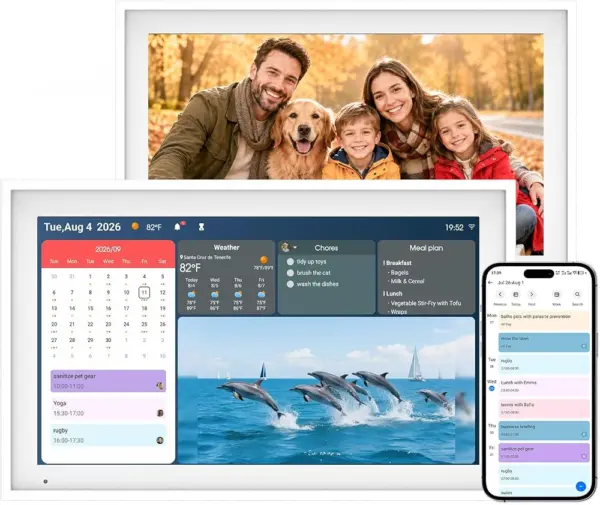
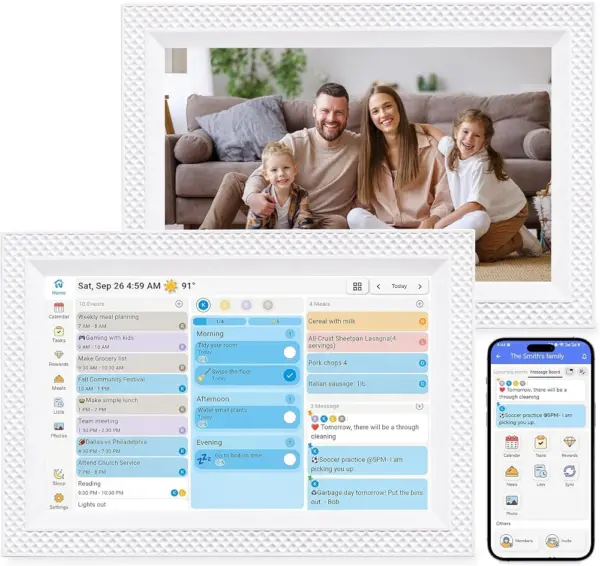
The Best Digital Family Calendars, Reviewed
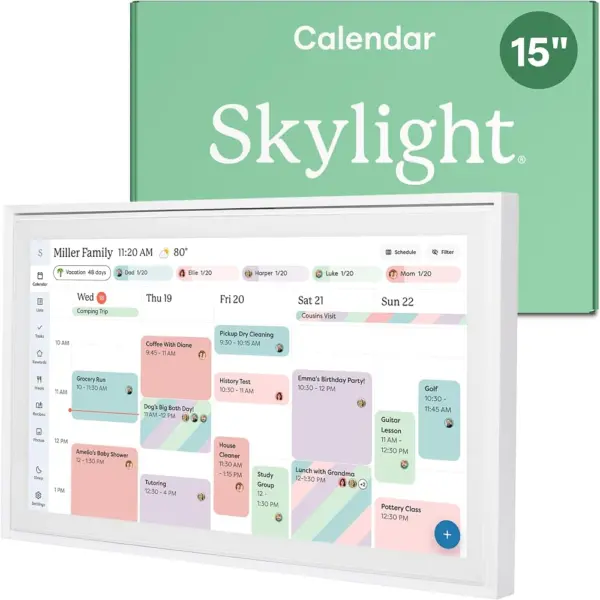
Skylight Calendar 15" – Best Overall
Key Features
- Screen: 15.4-inch Full HD touchscreen
- Mounting: Wall mount included or countertop
- Family tools: Chores and rewards, meal plans, lists
- Calendar sync: Google, iCloud, Outlook, Cozi, Yahoo
- Price: Premium
Fifteen inches sounds like a spec until a week of five people’s schedules is on it: names legible from the doorway, the whole week in one grid, nobody asking who has practice on Thursday. The screen is the point of this one. Skylight mounts it on the wall with hardware in the box or stands it on a counter, and either way it reads as part of the room rather than a tablet propped on a shelf.
What keeps us recommending it is how much of the household it holds. Chores with rewards, weekly meal plans, shared lists, and synced calendars from Google, iCloud, Outlook, Cozi, and Yahoo all live on the same panel, and the touch layer is responsive enough for a child to check off the dishwasher without help. That last part is the real test of a family calendar: everyone needs a reason to walk up to it, not just the person who set it up.
The network is the part to set up carefully. When the Wi-Fi drops, events added on a phone can sit in limbo until the connection returns, which is exactly the moment you do not want a stale screen. Site it where your phone gets a clean signal, and glance at the panel after you restart the router.
Cheaper picks on this list do the same jobs on smaller glass, and a couple of them beat Skylight on screen area for the money. None of them feel as settled in a hallway, and none put a household of five into one comfortable view the way this does.
Pros
- Biggest, clearest week-at-a-glance view here
- Chore chart children can check off themselves
- Syncs Google, iCloud, Outlook, Cozi, and Yahoo
- Wall mount included, or stands on a counter
Cons
- Costs as much as the biggest screens here
- Chore rewards and extras need a paid membership
We recommend the Skylight to families who want one big, polished screen running the whole week — schedules, chores, meals, and lists — and who can absorb the premium price.
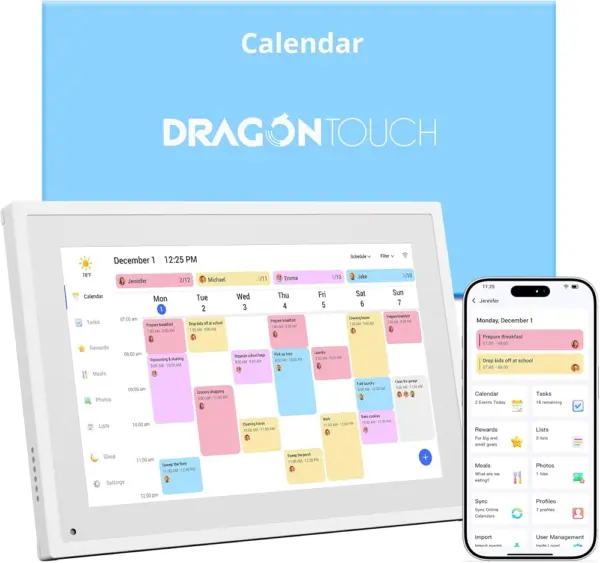
Dragon Touch 10.1" – Best Budget
Key Features
- App: eCalendar for iOS and Android
- Screen: 10.1-inch touchscreen
- Family tools: Chore chart, dinner planner, photo frame
- Price: Budget
This is where a family calendar stops being a splurge. The Dragon Touch does syncing, chores, meal planning, to-dos, and a photo slideshow on a 10.1-inch touchscreen, and it does them well enough that we hand it to anyone whose main worry is spending a lot on something that lives in the kitchen and gets splattered.
Almost everything runs through the eCalendar phone app: add a dentist appointment from the parking lot, assign the recycling, plan Tuesday’s dinner, and the panel catches up. That is the part we appreciate most — the calendar gets updated in the thirty seconds you actually have, not in a batch on Sunday night. Chores and rewards work the same way, and the interface is plain enough that kids tap through their own tasks without a tutorial.
The limit is the glass. Ten inches is fine on a counter you stand next to and cramped when the calendar hangs across a kitchen and you are reading the week from the stove. If that is your wall, the Linkdaze 15.6 costs more and solves it. For a first family calendar, a small apartment, or a household that mostly checks in from a phone, this is the value pick of the group.
Pros
- Covers schedules, chores, and meals at a budget price
- Phone app makes adding events from anywhere simple
- Family members pick it up without instruction
- Photo slideshow when the calendar is idle
Cons
- 10.1-inch screen reads small from across a room
Our budget pick: the Dragon Touch handles shared schedules, chores, and meals for far less than the big screens, and its phone app is genuinely easy to live with.
Linkdaze 15.6" – Best No-Subscription Pick
Key Features
- Screen: 15.6-inch 1080p touchscreen
- Storage: 64GB
- Mounting: Wall or desk
- Calendar sync: Google, iCloud, Outlook, Cozi, Yahoo
- Price: Midrange
No subscription, and not in the free-trial sense: sync, chore rewards, meal planning, and lists all work without anything renewing. For a screen that hangs on a wall for years, we think that matters more than any single feature in this roundup.
Behind the panel sit fifteen-point-six inches of 1080p and 64GB, so photo frame mode has room for a real library rather than a dozen favorites. Drag-and-drop widgets let you decide what the panel shows — chores, meals, weather, the week ahead — and the star reward chart gives younger kids something to tap toward. It mounts on a wall or stands on a desk, and the AiMOR app keeps a second adult’s phone in the loop.
That app is also the one thing to know going in. Setup and changes happen on your phone, not on the panel, so if you want to build next month’s schedule by poking at a wall screen, this is not that. We do not mind the trade: a swim practice is faster to type into a phone than into a fifteen-inch display, and the panel stays a display the whole family reads.
Pros
- No subscription for sync, chores, or rewards
- 15.6-inch 1080p screen reads across a kitchen
- 64GB holds a large photo library
- Mounts on a wall or stands on a desk
Cons
- Setup and edits happen in the AiMOR app, not on the panel
No annual fee, a 15.6-inch full HD screen, and 64GB of storage: the Linkdaze is the big-screen pick we point to when subscriptions are a dealbreaker.
LOVCUBE 10.1" – Best Compact
Key Features
- Screen: 10.1-inch HD touchscreen
- Dimensions: 10.5"W x 7.3"H
- Calendar sync: Google, iCloud, Outlook
- Price: Budget
Ten and a half inches wide by seven and a third tall, which means it sits beside a coffee maker, on a windowsill, or on the corner of a desk without claiming the whole surface. That footprint is the argument for it: plenty of kitchens have no wall left for a 15-inch panel and a counter with six spare inches.
Small does not mean stripped. It syncs Google Calendar, iCloud, and Outlook, runs a chore chart with points toward rewards, plans meals, keeps to-dos, and flips to a photo frame when nobody is looking at the week. There is no subscription, and it mounts on a wall or stands on a desk, so it can start out on the counter and move later.
The network is where this one asks for patience. Wi-Fi pairing can take a couple of attempts, and a connection that drops takes the syncing with it. Set it up near the router before you move it to its spot, and expect to check on the connection in a house with thick walls. Past that, it is the least expensive way onto this list that still does the whole job.
Pros
- Smallest footprint of the picks here
- No subscription for sync or chores
- Chore points, meals, and to-dos built in
- Doubles as a photo frame on the counter
Cons
- Wi-Fi pairing and reconnection can be finicky
Small, cheap, and still a real family calendar: the LOVCUBE handles sync, chore points, and meals without a subscription, provided your Wi-Fi is dependable.
Yemsd 21.5" – Best Large Screen
Key Features
- Screen: 21.5-inch HD touchscreen
- Dimensions: 20.67"W x 12.48"H
- Calendar sync: Google, Outlook, iCloud
- Price: Premium
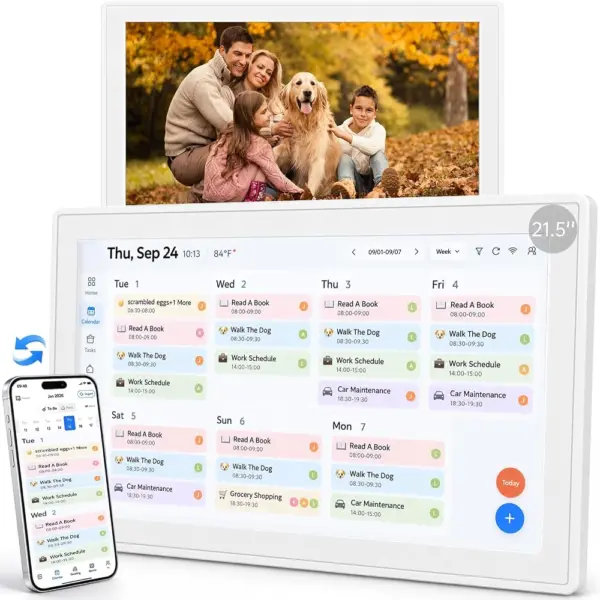
Twenty and two-thirds inches wide, twelve and a half tall, and it wants an outlet within cord reach. That is the first conversation to have with your kitchen, because this is not a device you find a spot for later. The 21.5-inch panel is the reason to buy it and the reason it will not fit everywhere.
What the size buys is a whole week you can read from the doorway: four or five schedules side by side, the meal plan underneath, the to-do list beside that. It syncs with Google, Outlook, and iCloud, runs chores with rewards, and states no subscription fees, which puts the running cost at nothing after the purchase. The acrylic body looks tidier on a wall than the plastic on most of the small units here.
We recommend it where the calendar is the kitchen’s centerpiece — the wall people walk past forty times a day. In a hallway, or in a kitchen where the screen would sit close to where you actually stand, those extra inches cost wall and money without adding much. It stands on a desk as well, if you have a desk that wide.
Pros
- 21.5-inch screen readable across a room
- No subscription for sync or chore rewards
- Mounts on a wall or stands on a desk
- Lists and meal planning share the same screen
Cons
- Needs 20-plus inches of wall and a nearby outlet
- Costs more than any other pick here
We recommend the Yemsd where the calendar is the kitchen’s centerpiece: 21.5 inches you can read from the doorway, no subscription, and room for everyone’s week.
Skyzoo 16" – Best for Narrow Wall Strips
Key Features
- Screen: 16-inch glare-free HD touchscreen
- Weight: 4.5 lb
- Dimensions: 12"W x 17"H
- Price: Midrange
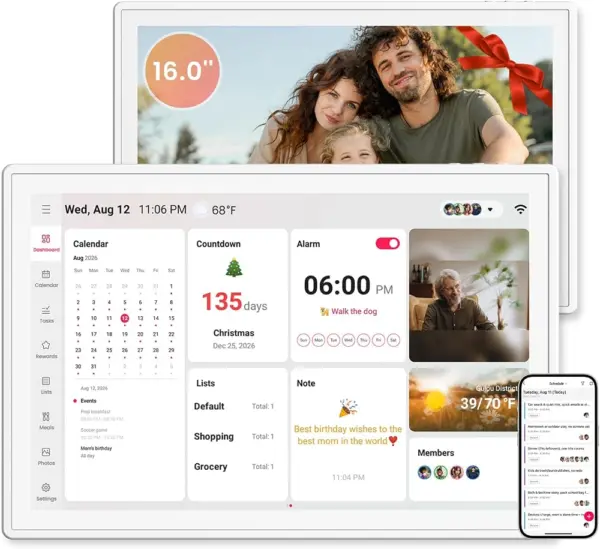
It hangs as a tall rectangle — twelve inches wide, seventeen tall — which is why it fits the narrow strip at the end of a counter run where a wide 15-inch panel simply will not go. The screen auto-rotates, so the layout follows however the unit is hung.
Behind that shape is a 16-inch glare-free HD touchscreen with the usual loadout: syncing with online calendars, a chore chart with rewards, a meal planner, and a photo frame that takes over when the calendar is idle. There are no monthly fees, and at 4.5 pounds it is a two-person job to hang rather than a one-person one.
We like it for hallways, end-of-counter strips, and households where the slideshow will get as much use as the schedule — it is the pick here that looks most like a framed print and least like a tablet fixed to the wall. The calendar side runs from the phone app, so the panel stays a viewer and a touch surface. If your wall is wide and low, a landscape 15-inch screen will use that space better.
Pros
- Portrait shape fits narrow wall strips
- No monthly fees for sync or chores
- 16-inch glare-free HD touchscreen
- Photo frame mode with auto-rotate
Cons
- Portrait footprint will not suit a wide, low wall
- 4.5 pounds wants a solid anchor
A portrait 16-inch screen with no monthly fee: we like it for narrow wall strips and for families who want the photo frame as much as the planner.
ikismet 21.5" – Maximum Screen Size
Key Features
- Screen: 21.5-inch 1920×1080 IPS touchscreen
- Storage: 32GB
- Mounting: Wall mount only
- Calendar sync: Google, iCloud, Outlook, Cozi, Yahoo
- Price: Premium
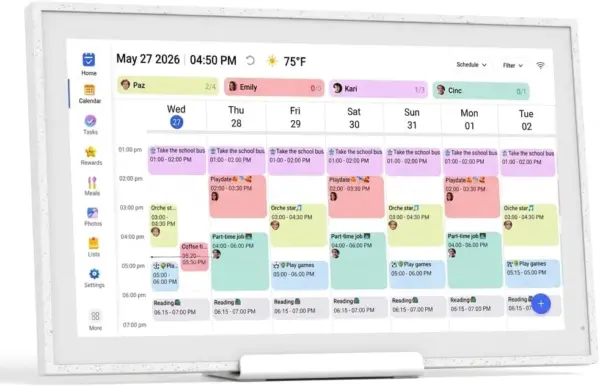
The other 21.5-inch screen in this group, and a slightly different animal: 21.1 inches wide by 12.9 tall, a 1920 by 1080 IPS panel, 32GB of storage, and a wall mount with no stand. Where the Yemsd can sit on a desk, this one is committed to the wall.
It syncs Google, iCloud, Outlook, Cozi, and Yahoo, the widest provider list here alongside the Skylight, and it layers on local weather, reminders, and an auto sleep mode that dims the panel at night. Photo frame mode puts the 32GB to work, and the whole thing is controlled from the phone app.
The connection is the part to watch. Units that lose the network after waking from sleep need a manual reconnect, and that is the difference between a calendar the household trusts and one people quietly stop checking. Give it a strong signal and check on it after the first week rather than the first month.
We recommend it to the buyer who wants the biggest panel available and is comfortable being the household’s tech support. If you would rather not troubleshoot a wall screen — and most families would rather not — the Yemsd is the safer 21.5-inch choice, and a 15-inch panel is easier to live with in most rooms.
Pros
- 21.5-inch 1080p IPS panel
- No subscription for sync
- Syncs Google, iCloud, Outlook, Cozi, and Yahoo
- Weather, reminders, and auto sleep mode
Cons
- Wall mount only, with no desk stand
- Connection can drop after sleep mode
A 21.5-inch 1080p panel with no subscription: we recommend it for buyers who want the biggest screen and do not mind occasional network troubleshooting.
What Eight Months of Living With These Calendars Taught Us
We started by pulling every family calendar display we could find with a real touchscreen and a built-in chore chart, then cut the list by price, screen size, and whether the calendar sync and chore features stayed free after setup. That left 12 units, which we set up in our own homes — kitchens, hallways, a home office desk — and ran for eight months.
Setup came first: we timed how long one person needed to connect Wi-Fi, add four family members, and link a Google calendar, then handed the screen to a 7-year-old and a grandparent and watched without helping. We noted where people stalled — settings buried three menus deep, on-screen keyboards that fought every tap — and how long it took to add a single event solo.
Connectivity got tested the way it breaks in real life. We added events from our phones in another room and from the car, then timed how long they took to appear on the wall, including while the screen was asleep. We edited the same event from two devices to see whose version survived, cut the router mid-week, and logged every freeze, surprise reboot, and chore chart that quietly reset itself overnight.
Because these screens sit in high-traffic spots, we wiped fingerprints with a damp cloth, checked the glass for scratches after kids used it as a chore chart, and looked at how each one reads turned off in a hallway. Then we tracked value: which features went behind a paywall after the first month, and whether the meal planner and reward screens were worth using on the free tier.
How to Choose a Digital Family Calendar
The screen gets the attention; the decisions that shape daily life are how much wall you can give it, which calendars it can pull in, and whether anything needs renewing a year from now.
Size Is a Wall Decision First
A 10-inch panel works on a counter you stand next to; a 21.5-inch panel works from a doorway. Somewhere between them sits 15 inches, which is where we land for a kitchen wall that has to be read while someone is holding a saucepan. Match the screen to your viewing distance, not to the biggest number in the listing.
Then measure the wall. The diagonal badly understates the footprint: the LOVCUBE is 10.5 inches wide, the Yemsd is 20.67, and the large picks want a genuine stretch of wall plus an outlet within cord reach. Tape the rectangle out before you order, and note that the panel has to be low enough for the child who checks off chores to reach it — usually lower than adult eye level.
Which Calendars It Can Pull In
Google, iCloud, and Outlook are the three nearly every model here handles; Cozi and Yahoo are the ones that come and go, so read the list if your household runs on one of them. Two-way sync is the thing to confirm: you want an event added on the panel to appear on your phone, not just the other way around.
Treat placement as part of the sync setup, too. The recurring failure in this category is the network rather than the calendar, and it usually shows up when the screen sits on the far side of a kitchen from the router. Put it where your phone gets a clean signal and you have removed most of the drama before it starts.
The Subscription Question
Some of these run everything on a one-time purchase; others put chore rewards and extras behind an annual plan, which is where a cheap calendar stops being cheap. Skylight’s free app covers the basics with the richer extras tied to a membership, while Linkdaze, LOVCUBE, Yemsd, Skyzoo, and ikismet all state no subscription.
Decide this before you compare prices. If the reward chart is the whole reason you are buying one of these, a plan that gates it behind a fee changes the math more than a screen-size difference does.
Chores, Rewards, and the Screen Kids Touch
The chore chart is what separates an electronic calendar from a wall-mounted copy of your phone’s calendar app. The ones worth buying let a child tap a task, watch it land, and collect a star or a point — that loop is what makes the thing get used on a Tuesday night, long after the novelty of the screen wears off.
Mount accordingly. A panel at adult eye level does not get tapped by a six-year-old, and a meal planner only the adults can reach is a grocery list with extra steps. If your kitchen wall cannot work at both heights, a 10-inch unit standing on the counter is the better answer than a beautiful 21.5-inch panel nobody under four feet can touch.
Frequently Asked Questions
Can a digital family calendar replace a paper wall planner?
Mostly, yes. The paper version usually survives because it is the only place everything lives together. Once every practice, lesson, and birthday sits in one synced calendar and shows up on the wall, the paper stops earning its space.
Keep a small whiteboard for grocery scribbles, and take the paper planner down for a month before you decide whether to go back to it.
Do I need a smartphone to set one up?
Yes. Every pick here pairs through a phone app during setup, so one adult needs a phone and the manufacturer’s app before the screen does anything useful. Budget a single setup session rather than trying to do it in five minutes before dinner.
After that, family members without a phone can still walk up and check off chores or read the week. The app stays the place where events get added from elsewhere.
Can I hang one in a nursery or a child’s bedroom?
The chore chart and meal plan live in the kitchen, so there is little reason to. If you want a screen in a nursery for photos or the schedule, keep it off the wall directly above a crib or changing table, mount it high, and route the power cord through a raceway or behind furniture where a child cannot reach it.
Use the sleep mode or auto-dimming so the panel is not a light source at 3 a.m.
Final Verdict
The Skylight is the family calendar we recommend to most households. Fifteen inches is enough to read a full week at a glance, the chore chart is the one children use without being nagged, and the syncing covers the calendars most families already keep. Buy it once, put it where the router reaches, and it stays the wall everyone checks.
If the size or the paid extras are sticking points, the Linkdaze 15.6 gives you the same screen class and 64GB with no subscription, and the Dragon Touch covers a tight budget at 10 inches. Buy the biggest screen your wall and your viewing distance allow; that is the choice that wears best after a year.